最好的linux发行版——WSL2的使用
在微软开源WSL2之前我就已经对WSL2产生了十足的好感,没想到微软直接开源了WSL2,现在WSL2社区也是好起来了,只看 wsl --list online 上的发行版就达到了20种
正话:什么是WSL?
wsl全称是 Windows Subsystem for Linux,即适用于 Linux 的 Windows 子系统,可以让你在 Windows 上近乎无损的使用 Linux 命令行
下面我提供一种配置方式,采用发行版是 manjaro for wsl2
配置
先看效果:
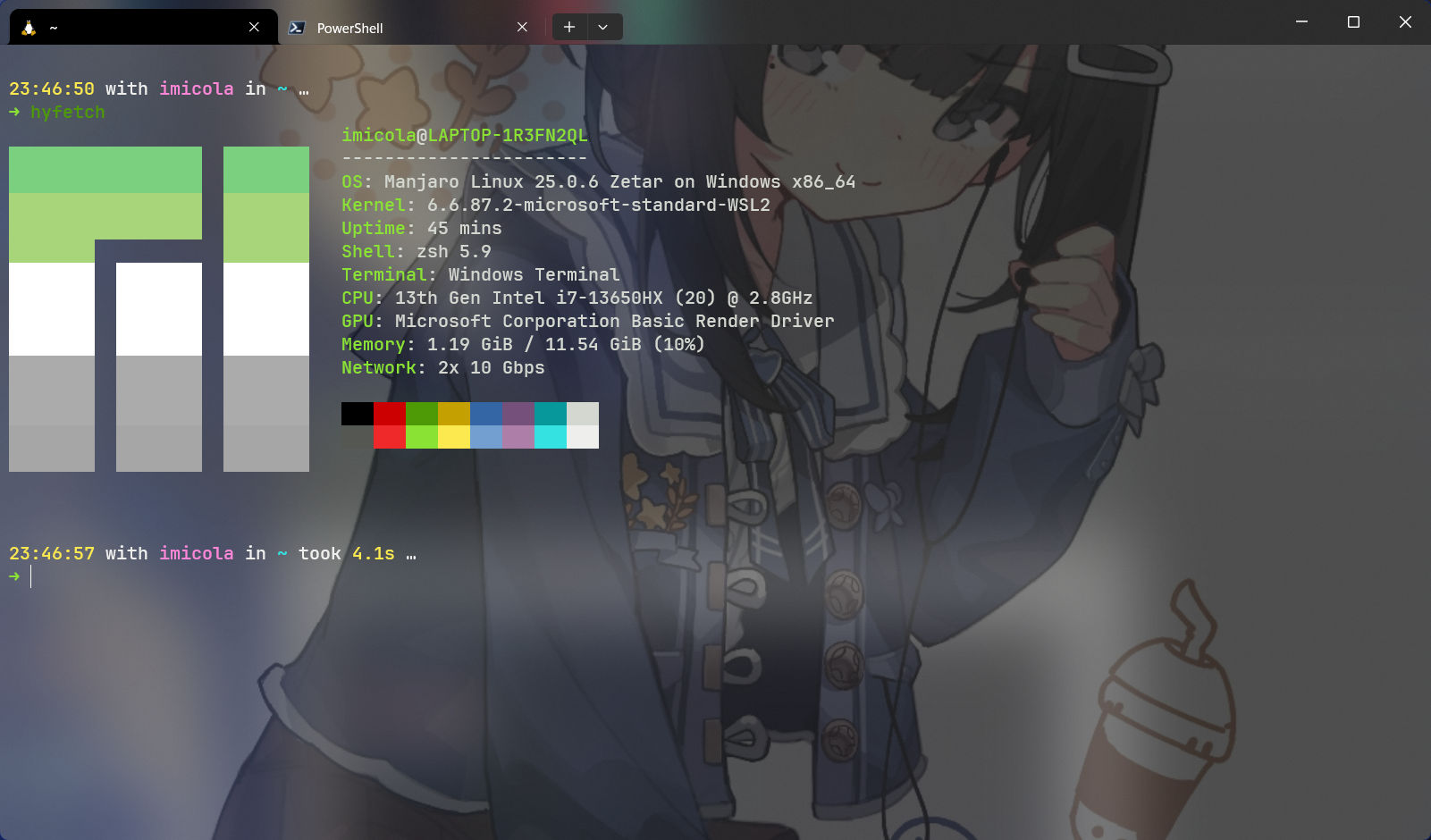
第一步,你需要先去 github 下载 manjaro for wsl2的发行版 release
下载后解压文件并双击 manjaro.exe 会在目录下建立虚拟硬盘,你的wsl文件都存在这个虚拟硬盘中
然后会开始创建wsl系统,接着根据提示输入用户名,root密码
设置完成后开始配置linux与wsl使其利于工作流
配置wslconf
在 Windows 目录 C:\Users\[用户名] 下创建名为 .wslconfig文件,将下述内容写入文件
[wsl2]

networkingMode=mirrored

firewall=true                     # 开启 Windows 防火墙

kernelCommandLine=cgroup_no_v2=all

[experimental]

hostAddressLoopback=true

autoMemoryReclaim=gradual         # 开启自动回收内存,可在 gradual, dropcache, disabled 之间选择

dnsTunneling=true                 # 开启 DNS Tunneling

sparseVhd=true # 开启自动释放 WSL2 虚拟硬盘空间打开 PowerShell 输入 wsl --shutdown 让wsl关机使配置生效
配置pacman镜像源
sudo pacman-mirrors --country China # 由于网络因素可能部分镜像网站显示 error, 但运行结束后会自动更新可用的镜像列表
sudo pacman -Syu # 选择2 dbus-daemon-units
sudo pacman -S yay # 安装 AUR Helper, 它可以执行pacman的几乎所有操作,并在此基础上添加了很多额外用法。配置终端
sudo pacman -S zsh安装zsh
下载 oh-my-zsh 框架
sh -c "$(wget -O- https://raw.githubusercontent.com/ohmyzsh/ohmyzsh/master/tools/install.sh)"配置插件环境
git clone https://github.com/zsh-users/zsh-syntax-highlighting.git ${ZSH_CUSTOM:-~/.oh-my-zsh/custom}/plugins/zsh-syntax-highlighting

git clone https://github.com/zsh-users/zsh-autosuggestions ${ZSH_CUSTOM:-~/.oh-my-zsh/custom}/plugins/zsh-autosuggestions

git clone https://gitee.com/lxgyChen/autojump

#安装主题
git clone https://github.com/spaceship-prompt/spaceship-prompt.git "$ZSH_CUSTOM/themes/spaceship-prompt" --depth=1
ln -s "$ZSH_CUSTOM/themes/spaceship-prompt/spaceship.zsh-theme" "$ZSH_CUSTOM/themes/spaceship.zsh-theme"安装 auto jump
cd autojump
./install.py
# 如果遇到权限问题输入 sudo chomd +x ./install.py安装fzf
sudo pacman -S fzf更新 ~/.zshrc
plugins=(
    git
    sudo
    copypath
    copyfile
    autojump
    zsh-syntax-highlighting
    zsh-autosuggestions
)

# 确保 Oh My Zsh 在设置了 plugins 变量之后加载
source $ZSH/oh-my-zsh.sh

# 修正 autojump 路径
[[ -s $HOME/.autojump/etc/profile.d/autojump.sh ]] && source $HOME/.autojump/etc/profile.d/autojump.sh
autoload -U compinit && compinit -u

SPACESHIP_TIME_SHOW="true"
SPACESHIP_USER_SHOW="always"
SPACESHIP_USER_COLOR="212" #粉色
SPACESHIP_RUST_VERBOSE_VERSION=true

alias cls="clear"
alias vi="nvim"
alias vim="nvim"

source <(fzf --zsh)知识关联
1 反向链接 · 0 提及笔记反向链接1
提及笔记0
暂未引用其他笔记
局部关系图谱
悬停高亮 · 点击跳转